
Stakeholder portal
The stakeholder portal gives each founder, employee, and investor a private, read-only view of their own equity - their shares, vesting, option grants, and SAFEs - and nothing else on your cap table.
Once your cap table is in Tenacap, the people on it can check their own equity in an invite-only, read-only “My equity” dashboard. Each person sees only their own holdings.
What the portal is
You invite stakeholders one at a time; there is no public sign-up. A stakeholder’s login is tied to the stakeholder record you invite, so the only rows they can load are their own.
Invite a stakeholder
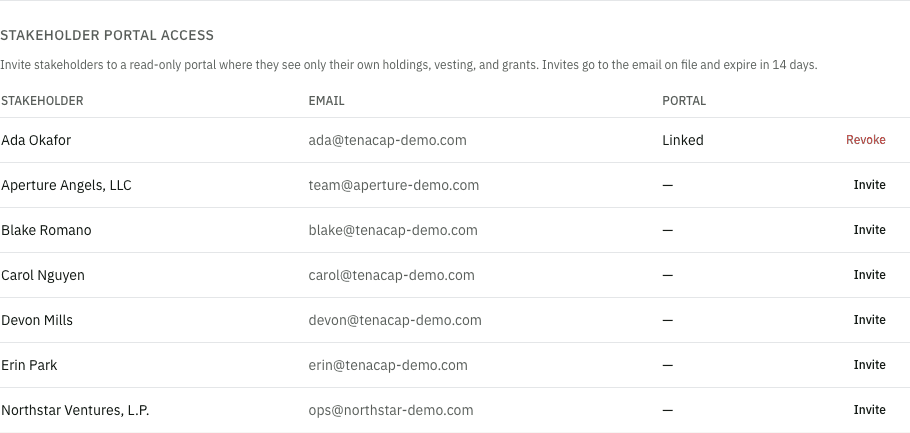
Open the person from Cap Table → Stakeholders and click Invite to Tenacap. The stakeholder needs an email on file, and you need the Editor or Admin role. Tenacap emails a single-use invite link that expires after 14 days.
A connected AI assistant can ask to invite someone too, but it cannot send the e-mail. Its request waits as a proposal that shows who will get the e-mail, at the address on file for them, and what the link opens: that one person’s own equity and nothing else. The e-mail goes out only when someone with the Editor or Admin role confirms it, and it is recorded as sent by them. If the stakeholder’s e-mail changes before then, nothing is sent and the assistant has to ask again. See Connect your assistant.
How they accept
The invitee clicks the link, which opens the acceptance page. They sign in - or create an account - using the same email address the invite was sent to. Matching the email is what links their login to their stakeholder record. After they accept, they land on their dashboard, and your admins get an email saying the stakeholder has joined.
What each person sees
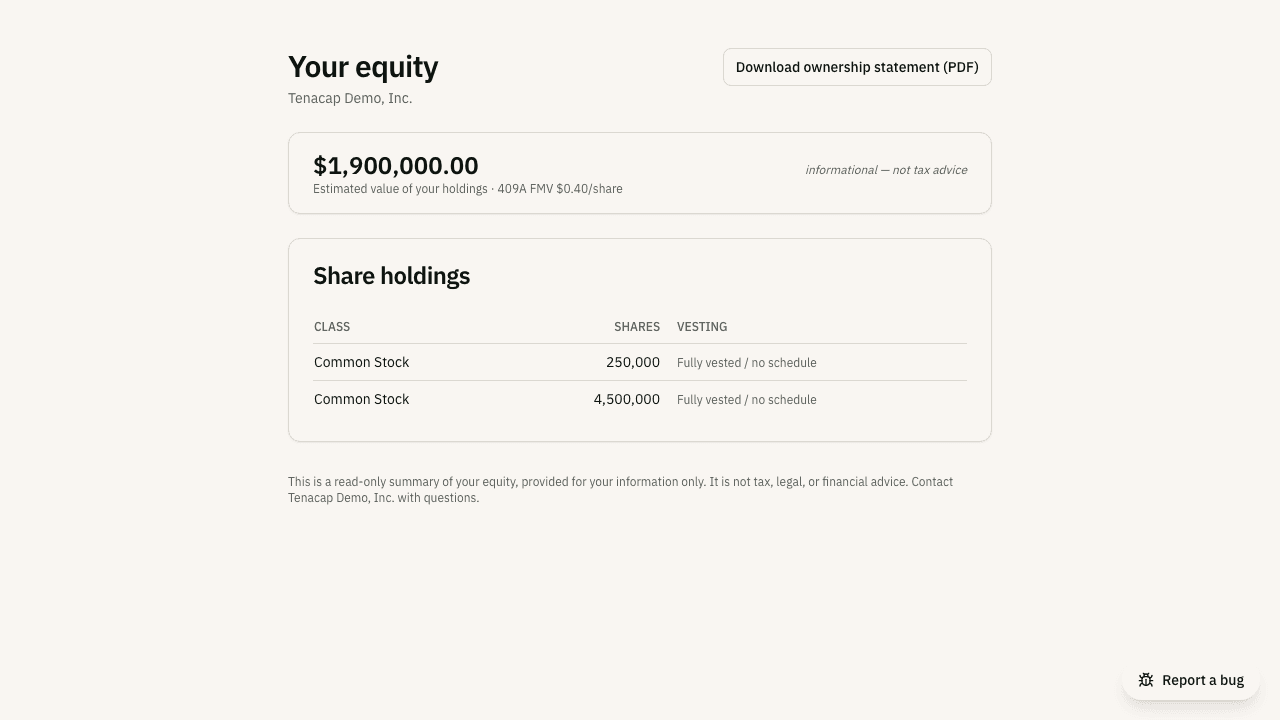
The “My equity” dashboard summarizes everything recorded for that one stakeholder:
- Share holdings - class, quantity, and a vesting bar showing vested versus unvested shares for any holding with a schedule.
- Option grants, in plain English - each grant shows type, quantity, strike, vesting progress, and expiration, plus the parts employees ask about: the cost to exercise the vested options (vested × strike), their value today if exercised (the pre-tax spread at the current 409A), the percent vested, and a short tax note explaining the ISO/NSO mechanism (AMT vs ordinary income). A grant the holder has exercised says so: how many options were exercised, the exercise date, and the 83(b) election on record for it with its filed date. A grant exercised in part shows the exercised options beside the ones still outstanding. A grant with options still to exercise carries an Exercise panel where the holder asks you to record one - see Exercise requests below.
- Convertibles - any SAFEs or notes they hold, with amount, valuation cap, and discount.
- Ownership percentage - shown only if you turn it on for the company; it is hidden by default, since it reveals the fully-diluted denominator.
- Documents - anything they signed through Tenacap’s e-sign, with the sealed copy to download once complete, and Files on record: what you attached to them, their grants or their certificates on the company side - an executed 83(b) election, a countersigned grant agreement, a signed certificate. They see only their own; a board consent that covers several people’s grants is not shown. Each download is logged in your audit log.
They can also download a PDF ownership statement of their own holdings. Every figure mirrors your admin cap table; vesting in the portal is computed from the same schedules.
If someone opens the portal before the cap table is built - the company exists, but nothing has been imported or entered yet - they see a “nothing here yet” message. Their equity appears once it’s recorded; they need no second invitation.
Exercise requests and the 83(b) postmark
Exercising is the one thing a holder wants to do from the portal, so the Exercise panel on a live grant raises a request: the holder enters how many options (it starts at their vested count; a larger number is an early exercise, allowed up to what is left on the grant when the grant allows early exercise; on a grant with a vesting schedule that does not, a number above the vested count is refused) and an optional note, and every admin and editor of your workspace gets an email with a link. Nothing is on the cap table yet. The request appears at the top of your Update cap table page under Exercise requests; Record exercise opens the usual exercise form on that grant, pre-filled with what was asked, and recording it closes the request. The exercise and the closed request are saved together, so one never happens without the other, and a request someone else already closed cannot be recorded twice. Close without recording is for a request you will not act on. A holder sees their open request on the grant until you resolve it, and can raise one request per grant at a time.
An AI assistant can list the requests waiting on you with list_exercise_requests, and propose either step for you to confirm: fulfill_exercise_request records the exercise and closes the request, and dismiss_exercise_request closes it without one. Nothing is written until a person with the Editor role confirms the proposal.
An early exercise starts the 30-day 83(b) clock, and the election appears in the holder’s 83(b) elections card with the deadline. Once they have mailed it, the card asks for the postmark date. What they enter is an attestation - “you told us you mailed it on…” - written to your audit log, not a filing: on the Option Holdings tracker that election reads Attested, copy not on file until you attach the executed election, after which it reads copy on file. Marking it filed is still your call.
Estimated value
When a current 409A fair-market value exists for the company, the dashboard shows an estimated dollar value of the stakeholder’s holdings, calculated as that price per share times their shares. Without a 409A on file, no dollar value is shown. The figure is labeled informational and is not tax, legal, or financial advice. To record a valuation so estimates can appear, see Compliance & tax.
Managing access
The Portal column on Cap Table → Stakeholders shows who has been invited and who has accepted. On a person’s page you can Resend an invite they haven’t accepted, Cancel invite, or Revoke access at any time, which immediately unlinks their login from the company. Revoking also cancels any invite of theirs still waiting to be accepted, so a link already in their inbox cannot let them back in; you can revoke someone who was invited but has not accepted yet, which just cancels the invite. Invites, accepts, and revocations are recorded in the audit log.
An assistant can propose revoking someone’s access. The proposal names the person, the logins that lose access, any open invite that will be cancelled, and what they will no longer see, and nothing changes until an Editor or Admin confirms it. Nobody is e-mailed when access is revoked.
If a stakeholder tells our support team directly that a portal invite never arrived or expired before they found it, a Tenacap operator can resend or revoke that pending invite on your behalf - the same resend/expire action described above. This grants an operator no access to your cap table: they see only that an invite exists and its status, and the action is written to your company’s own audit log as if you had done it yourself. See Trust & security for how operator access is scoped generally.