
Options, grants & vesting
Stand up an option plan, issue ISO or NSO grants, attach the vesting they carry, and record exercises - with a grant notice ready to sign at every step.
In Tenacap you authorize a plan, grant options against it, attach a vesting schedule, and - when someone exercises - turn vested options into shares on the cap table.
Create an option plan
An option plan is the board-authorized pool you grant out of. As an admin, open Cap Table → Structure, choose Option plans, and add one with a name (for example “2024 Plan”), its authorized size, the board-approval date, and the share class it reserves (Reserves shares of). A company can run several plans over its life, and each keeps its own pool. Every grant draws its plan down. The Options tab of the cap table leads with two numbers, Authorized (all plans) and Available; a Show details link expands the rest - Options granted, fully diluted, and the per-plan table with Returned and Restricted stock columns when those apply.
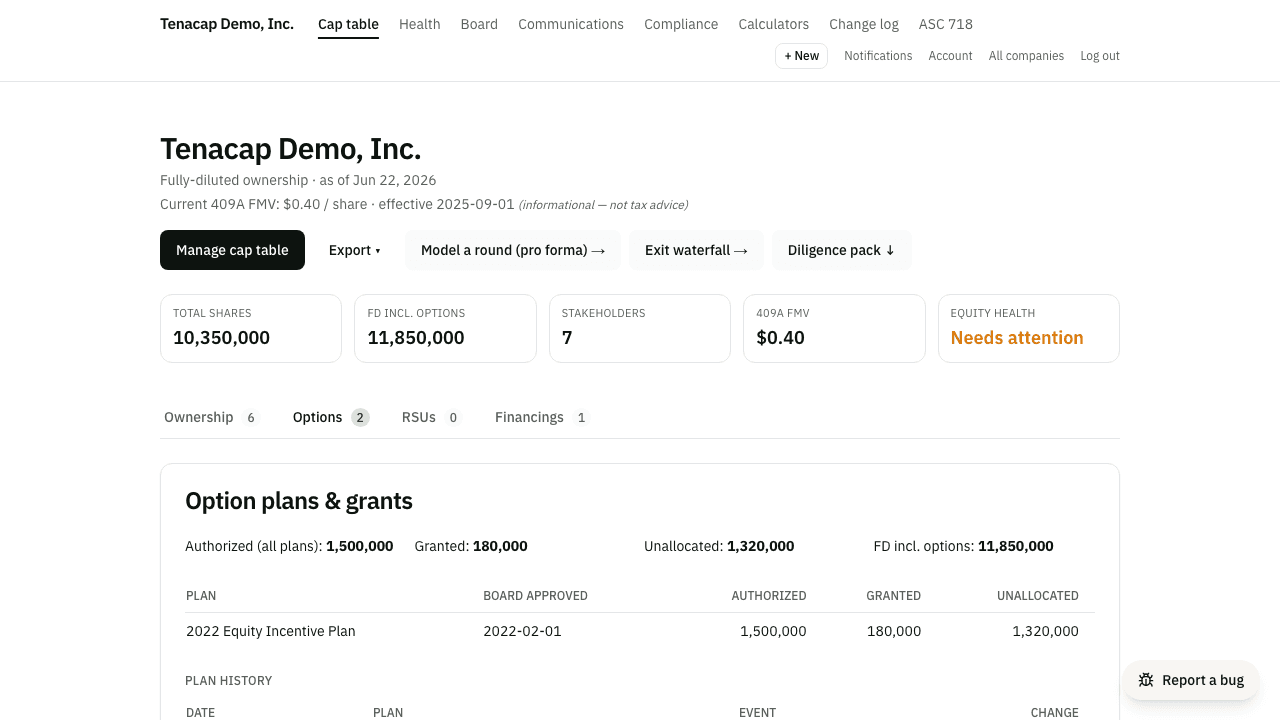
Resizing a plan is a board action. Change the size with Edit on the plan’s row, and Tenacap records the signed change and its date in the plan history, so counsel can see how the pool grew. Growing a plan that names its class also grows the class’s reserve, and is refused if issued plus reserved shares would pass the class’s authorized count. A plan cannot be made smaller than what it has already granted: its outstanding options and RSUs plus the shares already issued from it. A 1,000,000-share plan with 200,000 options granted, 50,000 of them exercised, can go down to 200,000 and no lower. Tenacap records the new size, not the board and stockholder approval behind it; attach the amendment to the plan’s page. An AI assistant can propose the change with the update_option_plan tool, showing the plan’s granted and unallocated shares before and after; an admin confirms it.
The plan counts against your authorized shares
A plan reserves shares of one class, almost always common, and Delaware counts that reserve against the class’s authorized ceiling before any option is exercised (DGCL §161: the board may issue only shares not already “issued, subscribed for, or otherwise committed to be issued”). So the room left for a new issuance or conversion is authorized minus issued minus reserved. With 10,000,000 common authorized, 9,000,000 issued and a 1,000,000-share plan, the room is 0, and Tenacap refuses an issuance or a conversion into that class unless treasury shares from an earlier buy-back cover it.
The shares tile on the cap table shows how much is reserved for plans, and the Reserves column in the plan list names the class. A new plan with no class picked takes your common class when you have only one. A plan with no class (imported, or created before this rule) shows Tie the plan to a share class under Needs attention on the company overview, and its reserve does not count against the ceiling until you pick one. An exercise uses up the plan’s reservation as it issues the shares.
Plan details and documents
Each plan has a page of its own under Company → Plans: the reserve the board authorized, what has been granted from it, what is left, and the documents behind it - the plan itself, the board resolution adopting it, the stockholder approval, any amendment. Attach them there; downloads are limited to admins, editors and whoever uploaded a file, and each is logged. The figures are the same ones the options tab shows; adding or editing a plan stays on the update page. Until a plan has its document, the company overview and the end of an import carry an Attach the plan document step that links here.
Issue ISO & NSO grants
A grant is issued to a stakeholder against a specific plan. From the grant form, pick the grantee and plan, then enter the quantity, strike price, grant date, expiration date, and the grant type - ISO (incentive stock option) or NSO (non-qualified stock option). Tenacap checks that the grant plus everything already granted stays within the plan’s authorized pool.
Three dates on the form usually match and sometimes do not, so each has its own field. The grant date is the date the grant was made - normally the day the board approved it. The board approval date follows the grant date until you change it; leave it filled and Tenacap records the approval on the Board page, linked to the grant, so the grant does not appear under Needs a board approval. Clear it if the board has not approved yet. The vesting start (the vesting commencement date) is often the hire date, which can be weeks or months before the grant; it follows the grant date until you set it. Once the grant lands the form says so and offers to send it for signature.
Each grant on the update page has an Attach control for the paper that goes with it - the grant agreement, the board consent, a countersigned notice - and everything attached shows on the holder’s page under Documents, beside any notice they signed through Tenacap. A share certificate row on the stakeholder page takes the signed certificate the same way.
Edit on an outstanding grant changes its strike price, expiration date or early-exercise setting. The quantity, type and plan cannot be edited; cancel the grant and grant again. The change log keeps the old and new value of each field you changed, and an exercise already recorded keeps the price it was made at. An AI assistant can propose the same change with the edit_grant tool. Its proposal warns when the new strike is below the 409A value on the grant date (an option priced below fair market value at grant is not an ISO), when an ISO would be exercisable more than ten years from grant, and when a grant notice was sent or signed on the old terms.
You do not have to go to the update page to find a grant. On a holder’s page each outstanding grant has Edit and Cancel beside it, and on the Structure page each option plan lists its outstanding grants with the same two links. Either opens that one grant’s form, already chosen, and a link back to the holder when it is done. Admins and editors see these links; viewers do not.
Standard & custom vesting
Every grant can carry a vesting schedule, built inline as you issue it or attached later. There are two kinds:
- Standard - a cliff plus a linear schedule: cliff months, total months, and a vesting frequency. The classic four-year grant with a one-year cliff vesting monthly is a standard schedule.
- Custom - dated milestone tranches, each with a fraction of the total. Use this for performance or board-dated vesting that doesn’t follow a single linear curve.
Tenacap computes vested and unvested counts as of today from the schedule, so the cap table and each holder’s view reflect the current state.
A schedule can also carry the agreement’s rounding rule. A period rarely vests a whole number of shares (2,000,000 shares over 36 months is 55,555.56 a month), so the agreement says what to do with the fraction. Tenacap rounds the running total down unless you choose nearest whole share when you build or attach the schedule - the wording many founder stock purchase agreements use (“fractional shares shall be rounded to the nearest whole share”). Either way the running total is rounded once, so the tranches add back up to the grant. Use whichever your agreement says; the difference is at most one share at any date.
Acceleration, pause & resume
Grants change. Tenacap records vesting lifecycle events on top of the schedule, so the history stays an exportable log:
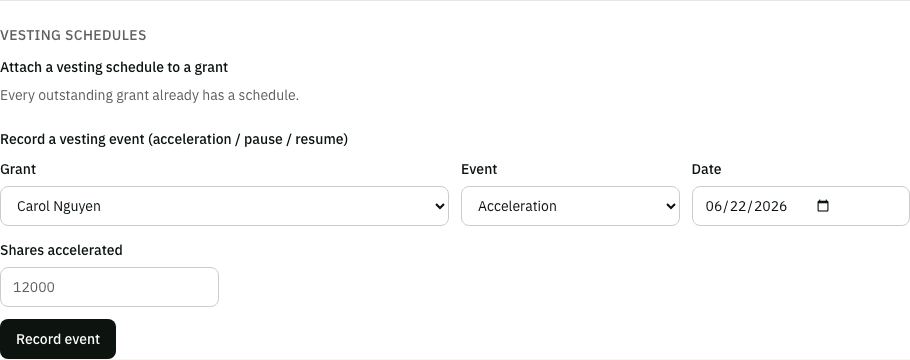
- Acceleration - single- or double-trigger. When the trigger fires, you record an acceleration event for a quantity; acceleration only ever raises vesting, and the regular schedule catching up later never double-counts.
- Pause & resume - a leave of absence. A pause stops the linear clock and a resume restarts it, shifting a standard schedule back by the whole months paused. Custom milestones keep their dates.
An AI assistant can propose the same event with the record_vesting_event tool, and a person confirms it. The proposal shows the shares vested before and after. Tenacap records that a trigger fired; it does not decide whether one did.
A share holding that came in from an import with only a reported vested figure can be given a real schedule under Complete a reported holding’s vesting, or by an assistant with the complete_reported_vesting tool.
When an import disagrees with the schedule
Vested and unvested counts are computed from a grant’s schedule. Imported grants are the one exception that needs a human answer: if your prior platform reported a different vested figure than the schedule recomputes, something happened that a schedule alone can’t see - a stop-vest, a leave of absence the platform tracked differently, or a negotiated modification.
A grant like that is flagged on the stakeholder page, with both numbers and two answers to choose between: vesting stopped here (the reported figure is final, and nothing more vests unless you edit the grant), or vesting paused and has resumed (the reported figure was correct as of that date, and vesting continues from there on the original schedule). Whichever you pick takes effect everywhere at once - the cap table, this holder’s page, the ISO $100k / Form 3921 view, and the vesting calendar all agree from then on. A grant nobody has answered about keeps showing the schedule figure. An AI assistant can propose the answer with the resolve_vesting_divergence tool, but only a person who knows what happened should confirm it.
Early exercise & recording exercises
If a grant is flagged for early exercise, the holder can exercise options before they vest. Early-exercised shares are issued as restricted stock that carries the grant’s vesting - which is when an 83(b) election matters; see Restricted stock for that filing. A grant that is not flagged and has a vesting schedule can be exercised only up to what has vested and is not yet exercised: Record exercise refuses a larger number, and so does the holder’s request from the portal. A grant with no vesting schedule is not limited this way. If the grant’s terms do permit early exercise, edit the grant and tick Allow early exercise first; that includes grants imported from an Open Cap Table file before this check existed, which did not carry the setting over.
When someone exercises, use Record exercise on the grant. Tenacap draws down the grant’s outstanding options and issues that many shares of the underlying class to the grantee at the strike price, using up the plan’s reservation for them. The shares come from unissued room first and from treasury only if that room runs out. Each holder’s own view in the stakeholder portal shows their grant’s expiration date and a days-remaining countdown, flagging one that has already lapsed.
The holder rows on the options tab default to three columns: Shares held, Vested (all time) and Exercised (all time). Shares held is outstanding options plus exercised shares, less anything the company has since repurchased out of an exercise, and credits back whatever the company reissued to the holder as a new certificate: what the holder has today. Vested (all time) is cumulative, including anything since exercised. Exercised (all time) is the gross amount that ever became shares, whether or not some of it was later bought back - the plan’s reservation stays spent either way. Because the first is a position and the other two are running totals, Shares held can read below Vested: a holder who left and had some vested shares bought back holds fewer than ever vested, and that is expected. Open a holder to see a Repurchased line with how many shares the company bought back and how many it reissued. A Lineage incomplete tag means some shares were bought back and the holder has common stock issued on or after that date that Tenacap cannot trace to a grant; if that stock was reissued from the bought-back certificate, Shares held reads low until the link is recorded. A More columns toggle brings back the full breakdown Carta’s tables use: Granted (the size of the grant - what the plan was drawn down by, unchanged by a later exercise, because exercised options still count against the plan), Unvested (what has yet to vest), and Outstanding (what can still be exercised, vested or not - the only one of these that counts in fully diluted, since exercised options are already common stock). A fully exercised grant reads granted, vested and exercised all equal, and outstanding 0 - unless the grant was early-exercised: then Vested can read lower than Exercised, because the holder bought shares before they vested, and Shares held lower still if the unvested portion was later bought back. Holders are listed by options received, most first, and stay listed even once nothing is outstanding: the tab hides only a holder whose Shares held read zero - left, and past their exercise window, with nothing ever exercised or everything since repurchased. A Show expired and cancelled checkbox brings those few back.
When a holder departs
The termination date can be in the past or up to a year ahead. Set it the day someone gives notice if that is when you manage your other platforms: vesting keeps running until the date arrives, the stakeholder reads Leaving with the date instead of Departed, and nothing returns to the plan until then. On the date it becomes an ordinary departure and the exercise-window reminders start from there. Cancel it beforehand with the same button if plans change.
Marking a stakeholder as departed stops their vesting. For a grant you created in Tenacap, the unvested part returns to the plan straight away. For a grant that came in from an import, Tenacap trusts the platform you imported from: the unvested part stays on the grant, and in fully diluted, until that platform reported it cancelled or you confirm the lapse - so the figures here keep matching the ones you left behind. Their vested, unexercised options stay theirs for the post-termination exercise window - 90 days unless you set a different number on the stakeholder. What happens when that window closes depends on when Tenacap learned of the departure.
If the window had already closed when you recorded the departure - you entered a date from years ago, or an import carried it - the options lapsed before Tenacap could have recorded an exercise, so it lapses them on its own: the holder shows 0 and the unexercised options are back in the plan. If they did buy their shares, use Record exercise and the row comes back.
On the Options tab, a holder whose grants are all cancelled, lapsed or expired carries one neutral Closed tag rather than a separate word for each reason - hover it (or open the stakeholder page) for which one it was and the date: cancelled by the company, lapsed after departure, or expired unexercised. A departed holder who early-exercised in full and had the unvested remainder repurchased reads Closed too, the same way - nothing is outstanding and nothing further will happen on the grant, even though it ended in a successful exercise rather than a lapse. A holder who simply exercised everything and is still with the company, or who left after an ordinary exercise with no buyback, carries no tag: the Exercised column already says what happened, and nothing about their grant is closed. The by-holder detail, open on expand, still lists each grant’s own status.
If the window closes while Tenacap is your record, it does not zero the options by itself. The stakeholder page and the update page say the window has closed with no answer on file, and Tenacap keeps counting the options in the plan and in fully diluted until you answer one of two ways: Exercise, if they bought their shares, or Confirm lapsed, which marks the grant lapsed and returns its unexercised options to the plan. Options the holder already exercised stay counted against the plan, whether the grant later lapses or you cancel it: they became shares. Reminders go to the company admins when the window opens, 14 and 3 days before it closes, and when it has closed with no answer. It waits because an exercise that happened but was never recorded is the more common mistake. An AI assistant can propose the same answer with the lapse_grant tool, showing the options outstanding and the plan’s unallocated shares before and after; it is refused while the window is still open or when no departure is recorded, and a person who knows the holder did not exercise confirms it.
Grant notices
For any grant you can generate a Notice of Grant - a PDF built from the grant’s own terms (plan, quantity, strike, dates, and vesting). The same document powers the e-sign request, so what the grantee signs is what you reviewed. Send it for signature from Tenacap; the signing flow is covered in Documents & e-signature.