
Importing your cap table
Bring an existing cap table into Tenacap from Carta, Pulley, Mantle, an Open Cap Format (OCF) bundle, the Tenacap workbook, or a spreadsheet of your own. Every figure is reconciled against your source’s own report, and you see what will be created, before anything is committed.
You upload one file, Tenacap parses it, and you review a full preview - stakeholders, share classes, securities, totals, and any exceptions - before anything is written. The import runs through the same engine as the rest of the product, so an imported cap table is indistinguishable from one built by hand. For the bigger picture of your first session, see Getting started.
Supported sources
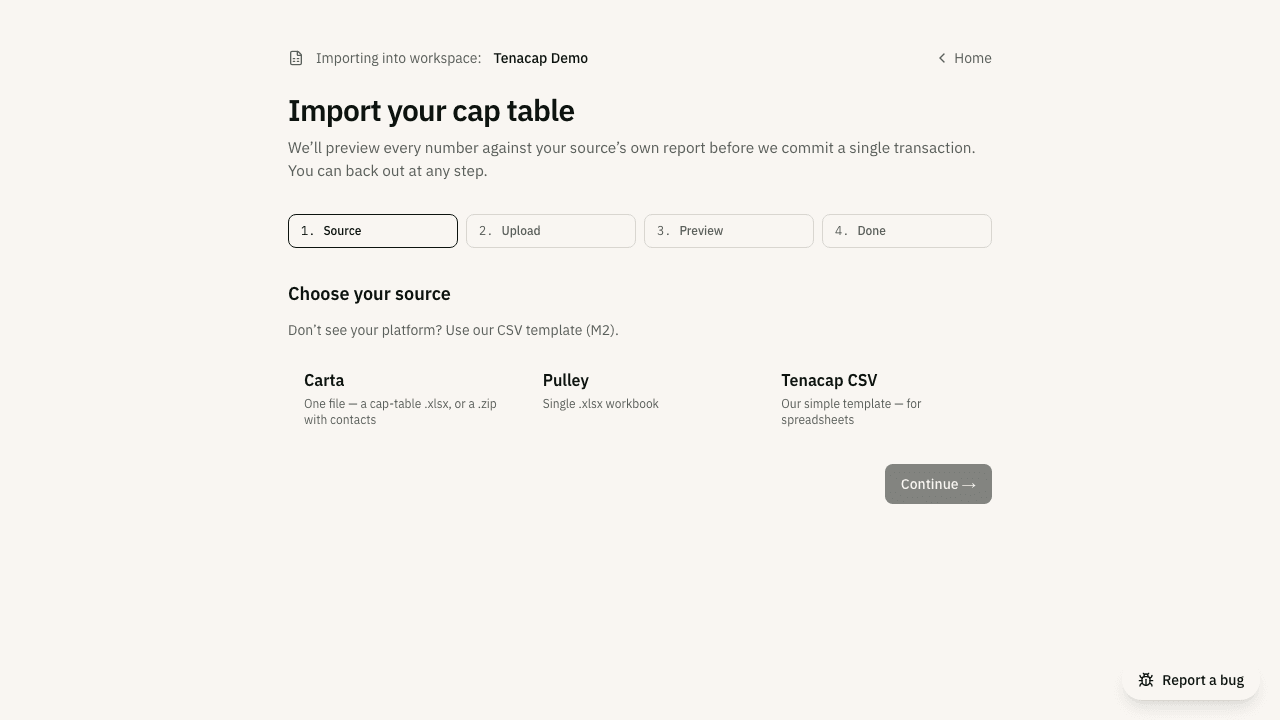
The import screen offers three choices: Migrate from another platform, The Tenacap workbook and A spreadsheet. The first covers Carta, Pulley, Mantle and OCF: upload the export and Tenacap recognises which platform produced it from the file itself, so there is nothing to pick.
- Carta - a cap-table
.xlsx, or a.zipthat also includes a contacts file for stakeholder emails. - Pulley - the cap-table
.xlsxworkbook, plus (optionally) its Stakeholder Information Report for emails and mailing addresses, either as a second file or zipped together. - Mantle - the Export OCX workbook. It carries stakeholder emails and mailing addresses, so no separate contacts file is needed.
- OCF - a zipped Open Cap Format v1.2.0 bundle (a manifest plus its object files), from Tenacap’s own OCF export or any other tool that produces one. Stakeholder emails come through when the bundle states them. OCF carries no entity type (C corp vs. LLC), so you are asked for that once at upload.
- A spreadsheet - for cap tables that live in a spreadsheet. Start from a blank template you fill in - download it as a CSV or as Excel (same template, two formats). The same two links sit on your company page and on the import screen. Then fill in one row per holding - a column tells us each row’s type (Common or Ordinary, Preferred, SAFE, Note, Option/ISO/NSO, or Warrant). Columns: Stakeholder, Email, Security Type, Share Class, Quantity, Price Per Share, Investment, Valuation Cap, Discount, Interest Rate, Maturity Date, Plan, Pool Size, Expiration Date, Vesting Months, Cliff Months, Vesting Start, Issue Date. For a convertible note, Investment is the principal (Interest Rate / Maturity Date optional → 0% and issue+2yr). For a Common or Preferred row, Investment is what the holder paid for those shares: when it is filled in, capital raised uses it as written, and a blank Price Per Share is worked out from it. For an option grant, Price Per Share is the strike and the grant draws from the named Plan; add Vesting Months (+ optional Cliff Months / Vesting Start) for a standard monthly schedule. Pool Size is the plan’s total authorized pool - put it on any row for that plan and leave it blank on the rest. Without it we can only assume the pool is what has been granted, which leaves no unallocated shares and makes your fully-diluted total look better than it is. Warrants take a strike (Price Per Share) and an Expiration Date. Already keep your cap table in a spreadsheet with different column names? Upload it as-is (.csv or .xlsx) and a mapping step lets you match your columns to ours (we pre-fill the obvious ones). This template is a different file from Tenacap’s CSV export: the export is a six-column report of outstanding shares only, so export → edit → re-import is not a supported workflow. See Export & open schema for what each export format contains.
- The Tenacap workbook - our own nine-tab template, and the right choice for a cap table a flat sheet cannot hold: a priced round with class-level terms, options that are part-exercised, or more than one plan. Download the workbook and fill in the tabs you need - stakeholders, share classes, equity plans, vesting schedules, securities. Column names are on row 1 of every tab. Pick The Tenacap workbook on the import screen and upload it whole: it reads all nine tabs in one pass, so there is no sheet to choose and no columns to map. Options belong on Securities, not Share Classes. On Securities, Security Type is the instrument (ISO, SAFE, Preferred…) and Share Type is what the shares themselves are (Common or Preferred) - an ISO grant is Security Type ISO, Share Type Common. Because the tabs refer to each other by name, a security naming a share class, plan or vesting schedule that has no row of its own is reported back to you. Workbooks built on the older version of this template - column names on row 4 under a title banner - are read too. One tab is not read yet: Transactions. Your holdings come from Securities, which states the position as it stands today, and any rows you have put on Transactions are listed in the exception report so you know they were not treated as history.
Producing your export
From Carta: go to Essentials, open View cap table, then Export. “Default cap table report” includes everything and is the safe choice. If you pick Select cap table report options instead, tick Summary, Detailed and Securities ledgers by type and class - Summary is where Carta records the cash raised against each share class, and without it we can’t tell what anything was bought for, so per-share prices and “capital raised” both arrive as $0. Set the “As of” date, leave Include Excel formulas set to No, and export to Excel. Grab the file from your Downloads. Carta’s OCX / Open Cap Table export also works. To include stakeholder emails and mailing addresses, add Carta’s contacts export - Essentials → Manage stakeholders → Download → Contact spreadsheet - dropped in the optional contacts box when you upload, or zipped together with the cap table.
From Pulley: click Download - top middle of the Dashboard, or on the Cap Table page. Check that the Download Cap Table dialog says “Includes all cap table details (fully diluted)”, leave All time checked and Include Drafts unchecked, then download. If a file turns out to hold only one section - only your convertibles, say - it came from a different export and has none of your shares in it. The right export is one workbook containing every tab - Summary, Ownership, a tab per share class (CS-Common, SPS-1-…), plus your convertibles, warrants, and equity plan. That workbook carries no email or address for anyone. To bring those in with the import, also download Pulley’s Stakeholder Information Report (Reports → Stakeholder Information → export, or Stakeholders → Actions → Download) and drop it in the optional contacts box when you upload. Each row is matched to a holder by Pulley’s External ID or an exact name - a row that names nobody in the cap table, or a holder the report does not name, is listed in the exception report, and the reviewed contact import can place those afterwards.
From Mantle: in the left-hand sidebar click Cap Table, then Export OCX. Mantle downloads one .xlsx in the Open Cap Table format - a Summary View, a Stakeholder View, a ledger tab per share class (Class A Common Ledger, say), a SAFEs Ledger, a tab per equity plan and a Context tab. Upload it as-is. What comes across: each share class with its authorized count and voting multiplier; every certificate with its issue date, price, cash paid and vesting schedule; every SAFE with its investment, cap, discount, MFN flag and pre/post-money basis; equity plans with their board-approval date and reserve; option grants with strike, expiry, vesting and exercised amounts; and each stakeholder with email, address and type. Mantle’s export does not state the incorporation date, jurisdiction or entity type, so the screen asks for those three. Fields we read but cannot model yet - board-approval dates on certificates, the basis of issuance, Rule 144 dates - are listed on the preview under “fields that need a home”.
Uploading your file
On a new account, choose Import from Carta, Pulley, or CSV on the first screen. For a company you already created, use Import from Carta, Pulley, or a spreadsheet on the company’s page, or Import under Company in the left navigation (Editor or Admin). Pick your source, then drag your file onto the upload area or click to browse. Tenacap accepts .xlsx and .zip files (the Tenacap CSV source also takes .csv) up to 50 MB.
Exports don’t carry a few company facts Tenacap needs - the incorporation date, state of incorporation and entity type - so the upload step asks for them, with the same state list and entity-type choices as company setup (the legal name is auto-extracted if you leave it blank). If your workspace already has a company, whether you set it up a minute ago or imported into it before, those details are filled in from it and shown as one line (“Importing into Acme, Inc. · Delaware · C-corporation”); click Edit company details only if something is wrong. When you continue, your file uploads and parses, then you land on the preview.
We keep the file you upload for as long as your account exists, so we can re-run your import if we later fix a bug in how we read it. If the corrected reading would remove something you added in Tenacap after importing, such as a grant, a SAFE or an entry you typed, we do not apply it on our own: a person at Tenacap reviews it first. When we do correct your cap table, we email your workspace admins what changed, and the cap table shows a line saying so until an admin dismisses it. The cap table as it was before is saved, and a reply to that email puts it back. If we find a problem with how we read your file later, after you kept the cap table, a person on our team looks at it first. We then email your company’s admins, with a Fix it for me button that asks us to fix it and write to you when it is done. You can download your own uploaded file or ask us to delete it at any time from the import screen; closing your account deletes it too. See Privacy for the full policy.
Reading the preview
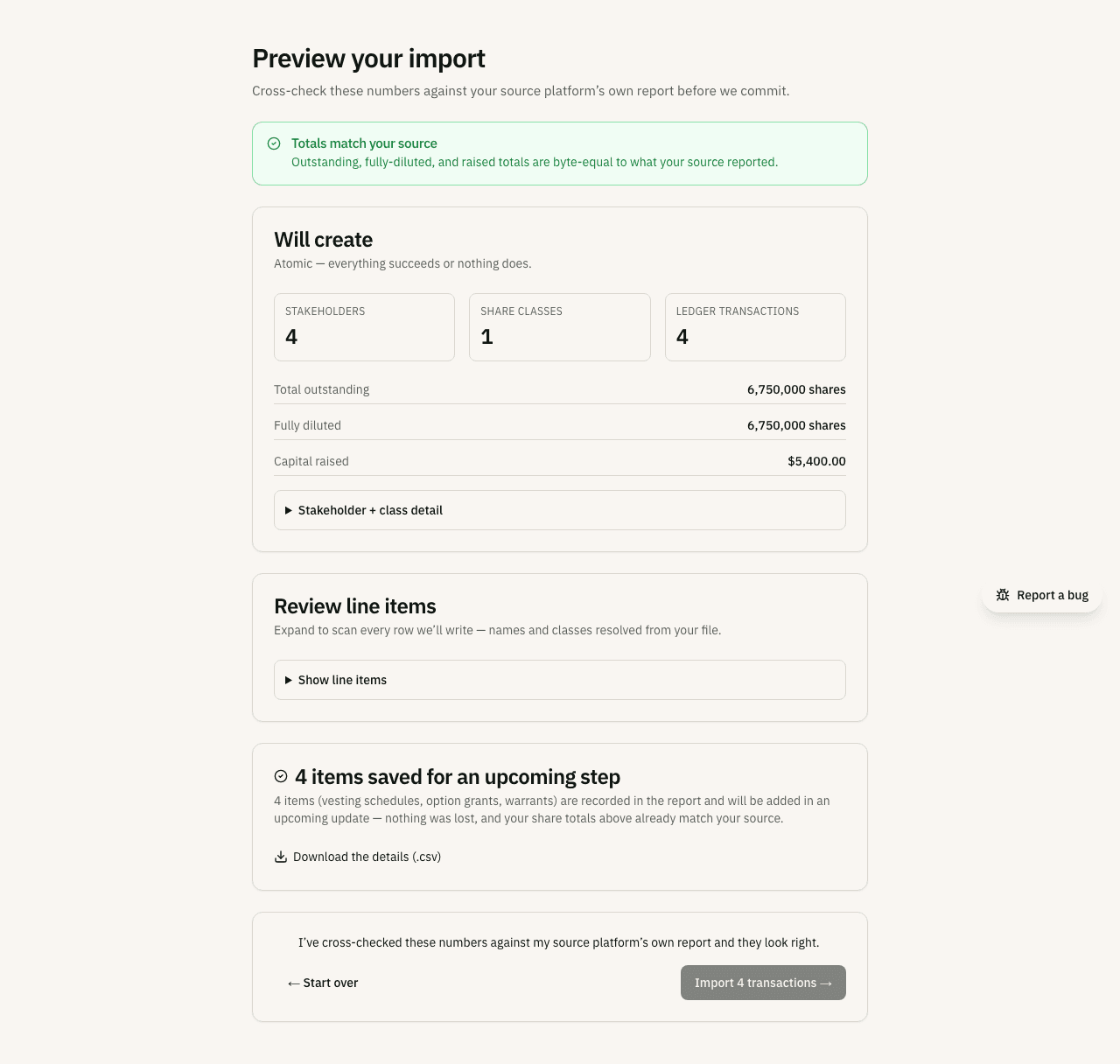
Nothing has been written yet. The preview is a dry run that replays your file against an empty cap table and totals up the result.
At the top is the trust check: Totals match your source when Tenacap’s outstanding and capital-raised figures are equal to the numbers your source reported. Below that, a “Will create” card breaks down how many stakeholders, share classes, and ledger transactions will be added.
Capital raised counts each dollar once. It is what was paid for shares, plus SAFEs and notes that converted (when your file has not already counted them in the shares), plus SAFEs and notes still outstanding. The outstanding figure is the one your cap table shows under SAFEs & notes after the import. Pulley counts a converted note’s principal in the capital contribution of the shares it became, so on a Pulley file the preview says how much of the share figure came from conversions rather than adding it a second time.
If your file states a fully-diluted total, the preview compares it with ours, which is the figure your cap table will show once you import. When the two differ you see a Fully diluted differs from your file warning with both numbers and what ours is made of: outstanding shares, options, warrants, the unissued option pool and any phantom units your plans count. That warning never blocks the import, because files and cap tables can count fully diluted differently (a cash-settled award, a warrant that has since expired).
When the totals disagree
If a figure your export states doesn’t match what we add up from its rows, the preview becomes a review. Each disagreeing figure gets its own card: what your export says on the left, what we read on the right, and the gap in plain words (“we read 96,000 fewer shares than your file says are outstanding”). Under it, the figure is broken down by share class - both Carta and Pulley state a per-class figure, so the class that disagrees is marked and the ones that agree are tucked away - and inside the marked class you can open the list of certificates we counted, and see the rows from your file we read but set aside, with the row number each one came from.
Then you choose what to do with that figure. Import it as it is and we work out the difference is the recommended path: your cap table is created from the rows we read, the figure stays flagged as disagreeing until we’ve found out why, and it reaches us the moment you import. If you know your file’s total counts something the figure doesn’t - warrants, say, or a reserved pool - choose my file’s total includes something that isn’t shares outstanding and say what; your explanation is recorded with the import. And if the wrong export was uploaded, start over - the card names the right one. Every choice is recorded in the import’s audit entry and shown on the finished screen with the same “Ask us to look at this” button as any other finding. A disagreement is either a bug on our side or the wrong export.
The preview also checks each option plan against your file. Pulley and Carta exports both state how many shares each plan has available to grant, and Pulley also states its options outstanding (Carta states options and RSUs outstanding together). We compare those with what the import will create. Available means the plan’s size, plus any shares returned to it, minus options outstanding, options already exercised, and restricted stock and RSUs granted from the plan. If a figure differs, the preview names the plan and gives your file’s number and ours. That doesn’t block the import: it is ours to fix, and we have the file.
For option grants, the preview also cross-checks vesting. Tenacap recomputes each grant’s vested quantity from its start date and schedule; when your source (currently Pulley) reports its own vested figure for a grant and the two disagree - which happens whenever real-world vesting was modified after the fact, such as a stop-vest on a role change, a leave of absence, or an acceleration - the preview names the grant and shows both numbers side by side. This does not block the import: the file alone can’t say which number is right, so the grant imports anchored to the source’s reported figure. Once committed, the stakeholder page asks you which it was - see when an import disagrees with the schedule - and your answer takes effect on the cap table, ISO $100k / Form 3921, and everywhere else that grant’s vesting is shown.
The preview also reports email coverage - how many of the incoming stakeholders have an email address on file. Carta and Pulley exports usually omit emails - Pulley’s cap-table workbook has no email column at all, so a Pulley import without its contacts report always shows zero - and emails are what let you invite holders to the portal and send them notices. Both platforms will hand you the addresses separately: in Pulley, the Stakeholder Information Report (Stakeholders → Actions → Download); in Carta, Manage stakeholders → Download → Contact spreadsheet. Add either one in the contacts box on the upload step, or bring it in afterwards with an email import.
Reviewing line items
The totals check answers “do the aggregates match?” The Review line items card answers “is every individual row right?” Expand it to see each transaction the import will write - its type, effective date, the stakeholder and share class (resolved from your file’s own references), the number of shares, the price per share and the total. A transfer names who gave the shares and who received them. When your file states only the total paid, the price per share is the total divided by the shares. It’s the same data the commit step writes, shown row by row so you can spot a misattributed holding or a wrong class before anything is committed. The list loads on demand when you open it, so a large cap table doesn’t slow the preview down.
If your export records a termination or end date for someone who has left (Pulley’s equity plan and Carta’s certificate ledger both carry one), the import marks that stakeholder as departed and stops their vesting on that date. Re-import to backfill departures you added since your last upload.
If a certificate in your export came from an option exercise, the import keeps the link. Both platforms record it - Pulley’s certificate ledger has a Source column reading “Exercised from ES-39”, Carta’s share ledger an Origin column naming the grant - and the resulting share holding shows “exercised from grant ES-39” on the stakeholder’s page, the same way a share that came from a converted SAFE names the SAFE. Re-import to pick the links up on a cap table you brought in earlier.
The exception report
Anything the import wants you to look at is listed on the preview, one row per item, and each row says what we did with it. The card above the list counts them by kind. Items we couldn’t import are not on your cap table. Items to check are mostly on it: a holder who isn’t in your contacts file is imported without an email; a holding whose vesting schedule we can’t read yet is imported, and the list says which schedule it uses for now; a figure that doesn’t add up says what we did with it and what to check. A row with a note is read as stated and reported so you can check our reading: a certificate transferred to another holder, say, or an option grant that is closed. Rows that say the same thing about different holders are listed once, with the holders named. Some of these can change your totals, so look the list over before you import.
A line in your file’s holder column that is really a total or a plan’s unissued shares (Total, Options Available, Unallocated, or a plan’s own name followed by Available) is not made into a stakeholder. When it holds nothing it is left out, and the exception report lists it as not a person. When holdings are recorded against it, we import it as written so nothing is lost, and you get a card asking you to check it. A real name that only contains one of those words, such as Available Capital LLC, is imported as normal.
You can download the full exception report as a CSV from both the preview and the post-import screen, so you have a record of what was set aside.
Committing the ledger
When the totals match, one checkbox stands between you and the commit. It asks for one comparison: total outstanding, fully diluted and capital raised on the preview against the same three lines on your platform’s own cap-table summary (or your own records, for a workbook or spreadsheet). Where your export states its outstanding and capital-raised totals, we have already matched ours to them, so this is a second look at our reading of your file. If a figure differs, that is a bug on our side; tell us and hold off. Then commit: an Editor or Admin can commit an import that sets up the company, and replacing a cap table that already exists needs the Admin role. Everything is written in one transaction: the company, every stakeholder, every share class, and every issuance succeed together, or nothing is written. Re-running the same import is a no-op, so a network blip mid-commit won’t double-import your cap table.
Importing into a company you already created
If you (or a colleague) already set up the company but haven’t built its cap table yet, importing lands into that company; nothing is deleted. When the file’s company details differ from what was typed at setup (legal name, incorporation date, state, or entity type), the preview shows a short side-by-side and keeps your typed values by default; you choose the file’s value per field if you want it. The share counts and share classes come from the file. If the company already has a cap table, importing offers to replace it - a separate, irreversible step.
Importing through an assistant
An assistant connected to Tenacap (see Connect your AI assistant) runs the same upload, parse and preview described above, and never parses the file itself. It uses one of two tools:
create_company_from_importwhen the workspace has no company yet. The assistant asks for the legal name, incorporation date, state and entity type, because no export carries them, and confirming the proposal creates the company and its cap table together.import_cap_tablefor a company that exists but whose cap table is still empty.
An assistant can also take the wizard’s own three steps one at a time: upload_import_file sends the export, parse_import reads it, and commit_import proposes writing it to the cap table. The upload page in the app runs those same three steps when you import yourself, so the two ways in cannot drift apart. commit_import can also finish an import you uploaded in the app.
The result is a proposal: the preview’s totals check, the rows that would be skipped and the parser’s findings, with the ownership picture the company would have. Nothing is written until a person with the Admin role confirms it in Tenacap.
A file up to 3 MB travels inside the tool call. For a larger export, the assistant hands you a one-time upload link. Open it in a browser, choose the export (and, for Carta or Pulley, the optional contacts file), and click Upload. The link lands the file on that one company or workspace, works once, and closes 15 minutes after it was issued. If the file cannot be read, the page says why and you can try a corrected file while the link is open. Uploading needs no sign-in. When the file lands, the same page takes you to the proposal to review and confirm, asking you to sign in only if you are not already. Opened again after the upload, the link says the file is already uploaded and, for someone signed in to that workspace, leads to the same proposal. An expired link says so; ask the assistant for a fresh one.
Replacing an existing cap table deletes ledger rows, so it is not available to an assistant; the proposal says so and cannot be confirmed. It stays a person’s step under Import, where the previous cap table is archived first. The findings an import raises are readable with list_import_findings. acknowledge_import_finding proposes the “leave this for now” mark and resolve_import_finding proposes closing a finding with a short note on what settled it, each for an Editor to confirm. request_import_finding_review is the “Ask us to look at this” button: it files an urgent report to our team only when a person confirms it, and we reply to that person.
Leave an import before it is committed, by closing the tab or losing your connection, and it is still there next time: a banner on the Import page lists it and takes you back to where you left off. If you no longer want it, Cancel import is on that banner and on the review page itself; it deletes the uploaded file and leaves your cap table as it was. A committed import cannot be cancelled this way, because it already changed your cap table - ask us to delete the retained file instead.
When a file’s totals disagree with its own rows, the choice on the review page (import it as read and we work the difference, or say what the file’s total counts) is yours, so an assistant’s proposal points you to that page instead of making it. An assistant can propose cancelling an import that has not been written yet (cancel_import, which deletes the uploaded file too), or deleting the uploaded file of one that has (delete_import_file): the file is removed from storage before we record it as deleted, your cap table and the import’s record stay, and the deletion itself is recorded.
What to verify after
Open your new cap table and confirm the fully-diluted totals match the numbers you cross-checked in the preview. Then open the exception report and record by hand anything that was set aside (an unrecognized row, a value we couldn’t map). If any stakeholders came in without an email address - always the case from Pulley - the finished-import page names them, each linked to their stakeholder page, and for ten or fewer gives you a field beside each name to type the address in place. For a longer list, run an email import from a contact sheet. A Tenacap workbook or Mantle export carries emails itself, so a missing address there means a blank cell in your file, and the page says so. Once those are in, your cap table is complete and ready to share through the stakeholder portal.
After the import is saved, Tenacap reads your file a second time and checks every holder and certificate on your new cap table against it. This second reading covers Pulley exports today; for other sources the checks show as not checked until it reaches them. The finished-import page shows the results in an Import checks card: one line per check, marked Passed, Needs a look or Not checked, with what it covered. Checks that passed are folded away. A check that needs a look opens to the holders behind it, with the certificate, what your file says, what Tenacap holds and the difference. A check that could not run says why; it is never shown as passed. When a check finds something wrong, that is ours to fix, and it also appears under Needs you. Your cap table is still saved as imported: the page says we found something we read wrong, and we email your company’s admins a Fix it for me button that asks us to fix it. We run the checks again every night; a problem found that way is looked at by a person first. Download the check report gives you the same results as a spreadsheet (CSV) to keep or send to your counsel. Your cap table then carries one line, such as “Import checks: all passed, last checked Oct 14, 2026”, that links back to the import.
The finished-import page also offers an optional last step, Add your documents: drop the folder of signed paperwork (grant agreements, 83(b) elections, SAFEs and notes, board consents, certificates) and Tenacap reads what each file is and files it on its record once you confirm. Skip it and it waits on the Documents page as Import documents. See Import documents.
To bring in a fresh export later, use Import under Company in the left nav, or the re-import link at the top of the cap table’s Update page. Both go through the same preview and offer to replace the existing cap table.