
Documents & e-signature
Tenacap generates the paperwork your equity records imply - grant notices, SAFE agreements, RSPAs, and board consents - and signs them natively. You can also upload any PDF and send it for signature the same way. The signer gets a private link, no account needed, and you get back a sealed PDF with a completion certificate that records who signed, when, and how.
A cap table is full of agreements waiting to happen: every option grant has a notice, every SAFE has a contract, every founder’s restricted stock has a purchase agreement. Tenacap draws each of these straight from the records you already keep, sends them for signature in the same window, and stores the executed result with its evidence trail.
Documents you can generate
Tenacap produces these agreements today, each merged from the underlying record so the numbers match your cap table:
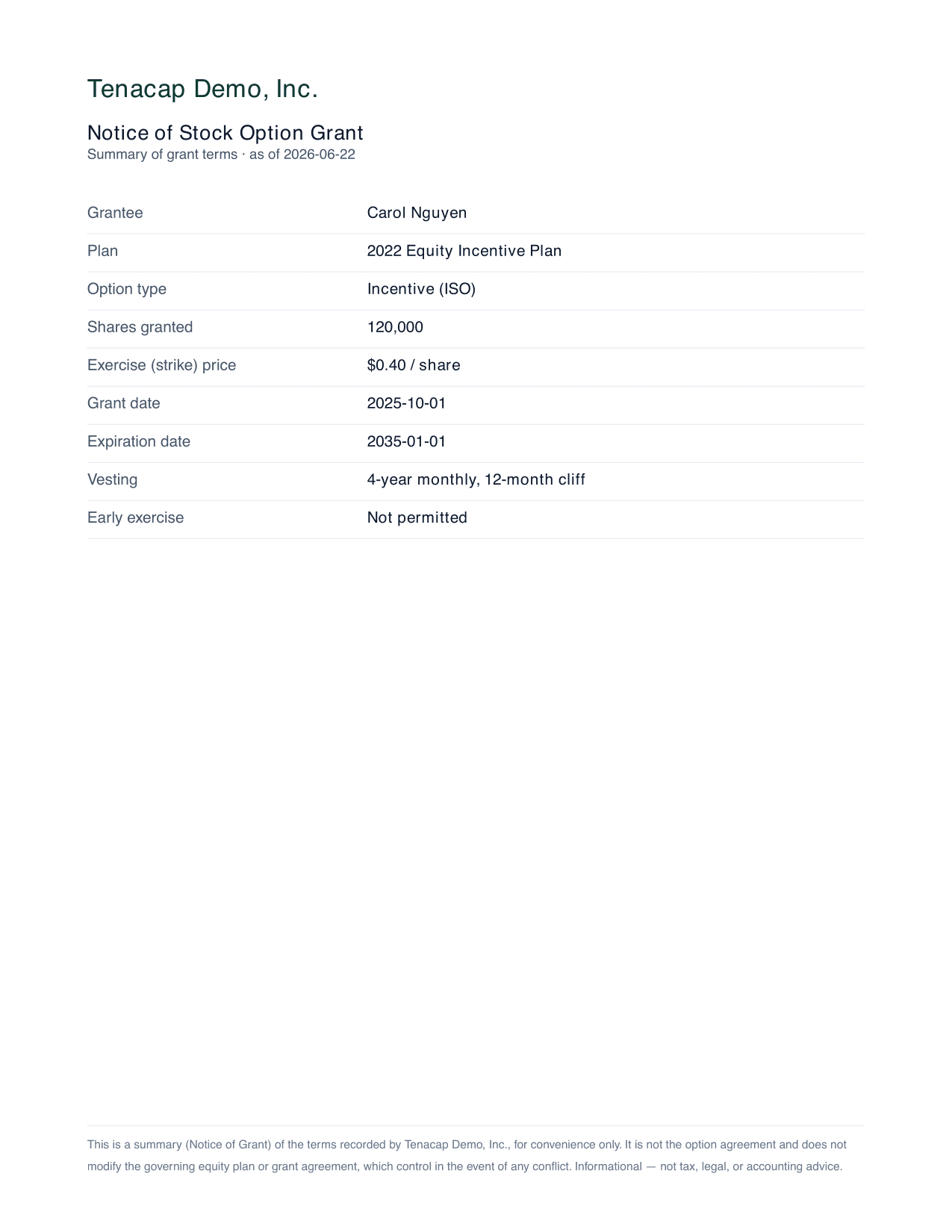
- Notice of Stock Option Grant - a one-page summary of an option grant: grantee, plan, type, shares, strike, dates, and the vesting summary.
- YC post-money SAFE agreement - the official Y Combinator form with your terms filled in. Recording and generating SAFEs is covered in SAFEs & convertibles.
- Restricted Stock Purchase Agreement (RSPA) - the founder purchase agreement that accompanies a restricted stock issuance.
- Board consent - the written consent that records a board approval, sent to every director for signature in one request.
- Stock Repurchase Agreement - a short-form buy-back agreement generated straight from a recorded repurchase transaction (parties, share class, quantity, price, total, and governing law), sent to the selling stakeholder to sign. Record the repurchase on the cap-table Update page, then Generate & send repurchase agreement.
Download without sending
On a holder’s page (Cap Table → Stakeholders, then the holder), an admin or editor can download the holder’s Ownership statement, the same PDF the holder gets from their portal, and the Notice for each of their option grants. A download sends nothing to anyone. Board consents download from Approvals & Notices → Board approvals. Everything is also in one place: Approvals & Notices → Documents, under “Download documents and reports”, with the company reports (diligence pack, OCF bundle, CSV), every holder’s statement and grant notices, and every board consent.
Send any document
Not every signature comes from a record on the cap table. Open Approvals & Notices → Documents, and under Send a document for signature give it a title, choose the PDF, add one or more signers, and click Send for signature. It runs through the same engine: private signing links, ESIGN/UETA evidence, and a sealed PDF with its completion certificate at the end. Everything you have sent is listed below, under Sent documents.
This is the path for agreements Tenacap doesn’t generate for you, such as:
- side letters, amendments, and consents not modeled on the cap table;
- an externally drafted version of any agreement your counsel prepared.
Import certificates
If your last provider issued share certificates, you probably have a folder of them. On the Documents page, Import certificates takes every PDF at once. Tenacap reads the certificate number printed inside each file - not the filename, which changes hands and gets renamed - and files the certificate on the holding that carries that number. Each one then appears on its holder’s page under Documents and in their portal under Files on record, beside the certificate Tenacap generates from the record itself.
A file Tenacap cannot place is never guessed at. It stays in a short review list with the reason - the number inside is not a certificate on this cap table, the file names more than one, or it is a scan with no readable text - and a picker of the company’s numbered certificates so you can choose the row yourself. Running the same folder twice does not file anything twice: a certificate already on file for its holding is skipped.
Import documents
If you moved from another provider, or your lawyer handed you the closing binder, you probably have a folder of signed paperwork. On the Documents page, Import documents opens a page where you drop the whole folder as it is. The same page is the optional last step of an import, Add your documents. Tenacap reads the title of each PDF to tell what it is, then matches it to its record by what is printed in it. Everything printed must agree; part of it is not a match.
- Grant agreements (options, RSUs, warrants) go on the grant: by the grant id your old provider printed, such as
ES-12, or by the holder’s name, the number of shares and the grant date. - 83(b) elections go on the restricted stock the election covers (or on the holder, when the stock is not on file as restricted stock): by the taxpayer’s name, the number of shares and the date of transfer, three things every election statement must state. Filed this way, the Option Holdings tracker shows the copy on file. Attaching a copy does not mark the election filed.
- Signed SAFEs and convertible notes go on the instrument: by the investor’s name, the purchase amount (the principal, for a note) and the date, and are filed as an Investment agreement. If the valuation cap, discount or interest rate printed in the document differs from your cap table, the row says so. Nothing on the cap table changes; if the document is right, correct the record yourself. A SAFE’s “Discount Rate” is read the way the YC SAFE defines it, as 100% less the discount.
- Board consents go on the board approval: by its date and every grant the approval lists (each holder’s name and share count), or by its date and title when it lists none. When your export carries each grant’s board approval date, the import records one approval per date, so a consent that approved that batch finds it.
- Stock certificates go on the holding, by the certificate number, the same way Import certificates files them.
Each file is shown with what Tenacap read it as, the record it was matched to and what it found. A file it cannot place (it could be more than one record, names none, is a scan with no readable text, or is a kind of document Tenacap does not file yet, such as a stock purchase agreement, a stock power, an exercise notice or the charter, whose exit terms are still read) is never guessed at: it gets a menu of the records for its type, and you can change its type, choose a record, or leave it out. Nothing is attached until someone with the Editor or Admin role presses Confirm, once, for the whole folder, and each document is then attached to its record as if you had attached it by hand. Files are PDFs, images or Word documents up to 4 MB each. New files can be dropped for 24 hours; once a file has arrived you can still come back and Confirm it for up to 7 days, and Tenacap emails whoever uploaded it a reminder each of those days. After 7 days with nothing confirmed, the files are deleted. A connected assistant can also do this for you, reading the files itself (see a folder of documents, through your assistant).
Exit terms read from your documents
What a note or a preferred share is paid at a sale is set by its documents, and the exit model is only as right as those terms. When you drop a convertible note or your certificate of incorporation (or a certificate of designations) into Import documents, Tenacap reads its exit terms with Claude and lists them under the files:
- From a note: what it repays on a change of control, as a multiple of principal and interest (“150% of the outstanding principal” is 1.5×), whether the holder gets the greater of that repayment and converting, and the cap, discount and interest rate. The cap, discount and interest are read the same way the row’s check reads them; Claude fills in only a term that check does not find.
- Also from a note: whether its cap is pre-money or post-money. A note that calls its cap a “post-money valuation cap”, or whose definition of Fully-Diluted Capitalization counts the notes and SAFEs “on a post-money basis”, is post-money. One that says “pre-money”, or leaves the notes out of that count, is pre-money. Confirming it sets the note’s cap basis, which decides how many shares it converts into. When the note does not say, the row tells you so and there is nothing to confirm: Tenacap reads a cap with no basis as pre-money (“pre-money assumed”), and you can set it under Structure → Edit terms.
- From a charter, for each series of preferred stock: its liquidation preference multiple, whether it participates after its preference, the cap on that participation, and the order the series are paid in.
Each term shows what your cap table has now beside what the document says, with the sentence it is printed in and its page. A term is kept only when that sentence is in the document word for word, and when the sentence does not state the number itself the row tells you to read it before confirming. Nothing changes until someone with the Admin role presses Confirm on a term; that writes the document’s value onto the note or share class, records it in the audit log, and remembers the document and page it came from. On a share class the term then counts as confirmed (by you, and when), and the class links the charter once it is attached. The exit model uses the confirmed term, and its terms panel names the document it came from. Confirming one series’ order of payment sets the order of every series the charter ranks, since the order is relative. A scan with no text layer is read from its page images; each term read that way is marked for you to check on the page before you confirm it. A connected assistant can read the terms (read_document_terms) and propose a confirm (confirm_document_term), which an Admin then confirms.
Attaching files from your assistant
A connected assistant can attach a file to a record, take one off, and file a certificate PDF against its holding, the same three things you can do here. It sends the file with its request, up to 3 MB; a larger file is attached in the app, where the limit is 25 MB.
Nothing is attached until an Editor or Admin confirms. The confirmation shows the record, the file’s name and size, and a fingerprint of its contents (a SHA-256), and warns if the same file is already on that record. Taking a document off shows which one goes and from where. The document stops being listed, but the file and its history are kept.
For a certificate, the assistant’s request can be confirmed only when the number inside the PDF names exactly one holding. If it names none or several, or the PDF is a scan with no text, the request says so and lists the candidates, and the file can be attached to the right holding directly.
A folder of documents, through your assistant
If you moved from another provider you may have one signed stock option agreement per grant, or a whole folder of mixed paperwork. Drop it into your assistant and ask it to file each document on the right record. It reads every file, says what each one is, finds the grant each agreement documents (the holder’s name, the number of shares, the grant date, the exercise price, and the grant id your old provider printed, such as ES-12), and hands Tenacap the list: file, type, record, and a one-line reason. For an 83(b) election, a SAFE or a note it can leave the record to Tenacap, which matches those from their text as Import documents does. A file it is not sure of goes on the list as unmatched. It never guesses. When an import or a new company is done, Tenacap tells the assistant to offer this step.
The files themselves come to Tenacap separately, because an assistant can read a PDF but cannot pass its contents along. If your assistant can run code, it uploads each file itself. Otherwise it gives you a link to a Tenacap page; drop the same files or the whole folder there. The page shows each file next to the record it was matched to and the reason. Anything without a record gets a menu so you can choose one, and Tenacap tries to match it first from what is printed inside it.
Nothing is attached until someone with the Editor or Admin role presses Confirm, once, for the whole pile. A file whose contents differ from the one your assistant read is flagged and is not attached unless you choose its record. Each file is then attached as if you had attached it by hand, with the same record in the history. Files are PDFs, images or Word documents up to 4 MB each. The link accepts new files for 24 hours; a file that has already arrived can still be confirmed for up to 7 days, and the uploader gets a daily email reminder until then. Files nobody confirms within 7 days are deleted.
Send for signature
For a generated document, click Request signature beside it (grant notices and other agreements on Cap Table → Update, consents on Board). Tenacap hashes the PDF being presented - that hash proves nothing changed afterward - creates a signature request, and emails the signer a single-use link. If no email is on file, you can copy the link and share it yourself.

What the signer sees
The signer opens the link and lands on a public page; no Tenacap account, no password. They see the document in the page, can open it in a new tab, and complete two steps:
- Consent - they check a box agreeing to do business electronically (E-SIGN / UETA) and confirming they are the named signer.
- Sign - they type their full name and click Sign.
Once signed, the page confirms it and they can close the tab. Each link is single-use and expires; a stale or already-signed link shows a message saying so.
A signer can also decline (it matters for a shareholder consent, where a holder may not approve). Declining records the same evidence as a signature, plus an optional reason. A request resolves to Completed once everyone signs, or Declined once everyone has responded and at least one person declined; the Shareholders view shows the approved / declined / pending tally.
The evidence recorded
A signature is a record built for the E-SIGN and UETA standards. With each one Tenacap captures:
- the typed signature and the signer’s name and email;
- the moment consent was given and the moment the document was signed;
- a privacy-preserving hash of the signer’s IP address, plus their browser details;
- the document hash, binding every event to the exact PDF that was presented.
Each of these events is appended to Tenacap’s tamper-evident audit chain.
Sealed PDF & certificate
When everyone has signed, Tenacap seals the result: the signed document and a completion certificate are merged into a single PDF. The certificate lists the signers, their timestamps, consent, typed signatures, IP hash, browser, and the document hash - the whole evidence trail on one page. From the cap table you can download the signed PDF and the certificate any time after completion. Your admins are also emailed the moment a document is fully signed.
Signed, effective, funded, issued
A signature is one event in an instrument’s life. Tenacap keeps four questions separate, because they have separate answers:
- Signed - a party has applied a signature. Tenacap records each one with its own timestamp.
- Effective - the agreement’s own conditions for taking effect are met. For a two-party agreement such as a SAFE or an RSPA, that includes the company’s own execution.
- Funded - the money has arrived, where the document calls for any. A grant notice has no funded state; a SAFE does.
- Issued - the security exists on the cap table.
Tenacap routes a SAFE, RSPA or grant notice to the counterparty only; the company does not countersign through the product today. So a completed request means the investor or grantee has signed, and the status line says so: Signed by Ada Lovelace; awaiting the company’s countersignature. A board consent needs every director, since DGCL §141(f) has no lesser threshold. A stockholder consent, by default, is also complete once every signer has answered; it can also complete earlier, once enough signed shares clear a chosen vote threshold. See Stockholder consents.
Stockholder consents
From Approvals & Notices → Shareholders you can ask your stockholders to sign a written consent. Leave the class unset to ask every stakeholder with an email on file, or pick a share class to ask only its stockholders of record: everyone who holds issued shares in that class today, as your cap table shows them. Option and RSU holders are not included, because they do not hold shares yet. Holders in the class with no email on file are named before you send, so you can add an address.
Under Delaware law a stockholder consent takes effect once it is signed by holders of at least the number of shares a meeting would need to pass it, which is usually not everyone. A connected assistant (or a direct API call) can ask for this vote threshold when it proposes a consent: a company-wide majority, a single class voting separately, or a Requisite Holders percentage of preferred, as-converted. The confirmation you review before sending shows the exact number of votes needed and states plainly that choosing a threshold means an automatic email goes out to every signer, signed or not, the moment it clears. Anyone who had not yet signed then has 5 days to add a signature to the record, and gets a second email once that window closes with the final tally - how many more signed, and the final percentage against the threshold. Leave the threshold unset and the consent keeps today’s behavior: complete once every signer has answered, with neither email. The Voting page also offers a threshold picker when sending from its own class filter, alongside the assistant- and API-driven path.
A connected assistant can propose a stockholder consent but cannot send it. The proposal lists every signer and anyone in the class it cannot reach, and nothing goes out until an Editor or Admin confirms it. If the list of signers changes before then, nothing is sent and the assistant has to propose it again.