
Getting started
Tenacap takes you from incorporation to a clean, fully-diluted cap table in about fifteen minutes: import from another tool, build it by hand, or set it up from Claude.
Tenacap is a flat-rate cap-table platform for pre-seed through Series B founders. This guide covers the first session: creating an account, adding your company, getting your ownership records in, and inviting the people who need to see them.
Create your account
Go to the sign-up page and register with your email, or choose Continue with Google (or Continue with Microsoft, where offered). Your login belongs to you. One account can hold or be invited to several companies, which matters if you found more than one or advise others.
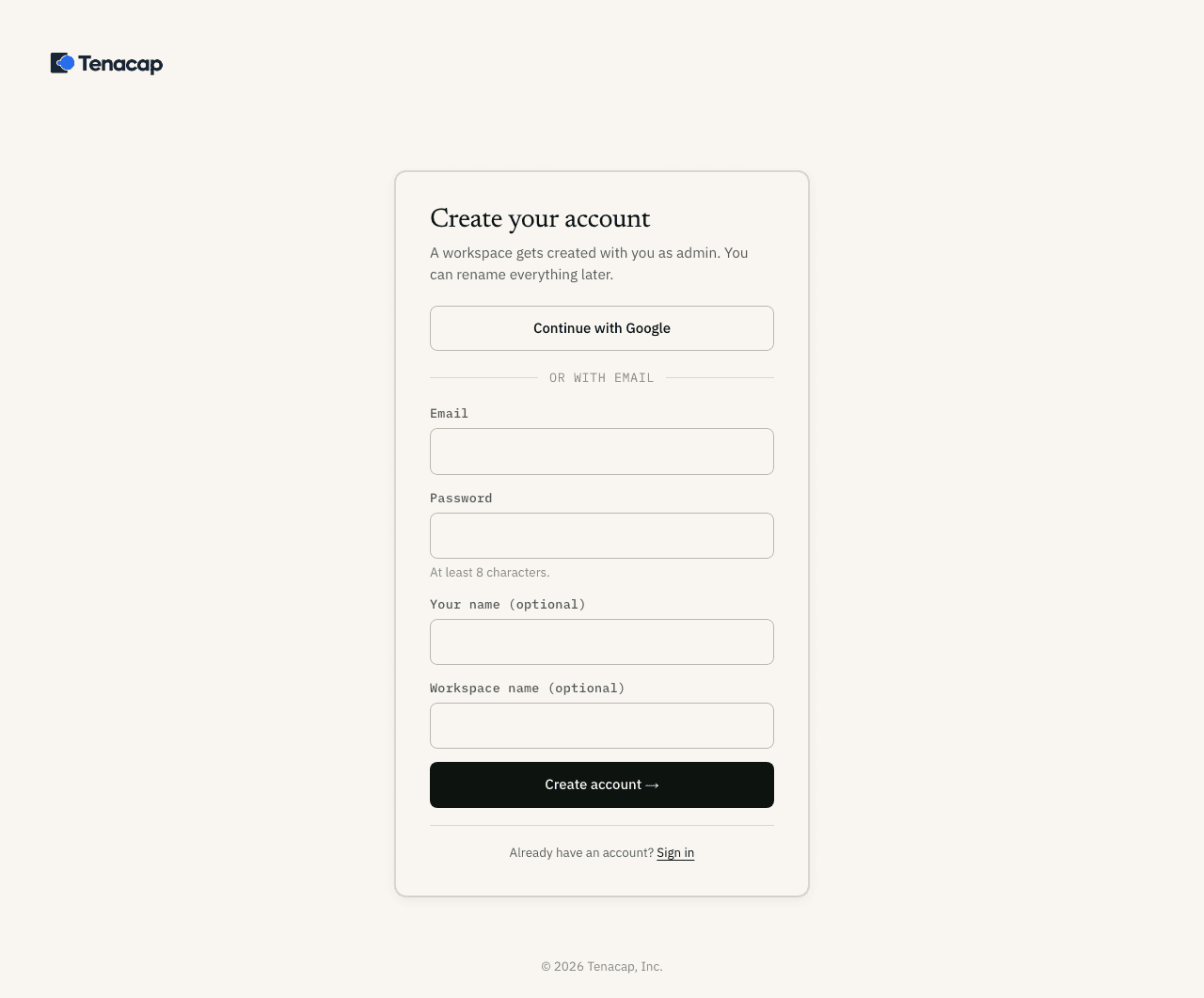
Microsoft sign-in uses your email address only when Microsoft confirms it is yours: always for a personal Microsoft account, and for a work or school account when your organization has verified its email domain with Microsoft. If it hasn’t, sign in with Google or an email and password instead.
Add your company
After signing in you arrive at How do you want to start? with two choices: Start from scratch and Import from Carta, Pulley, or CSV.
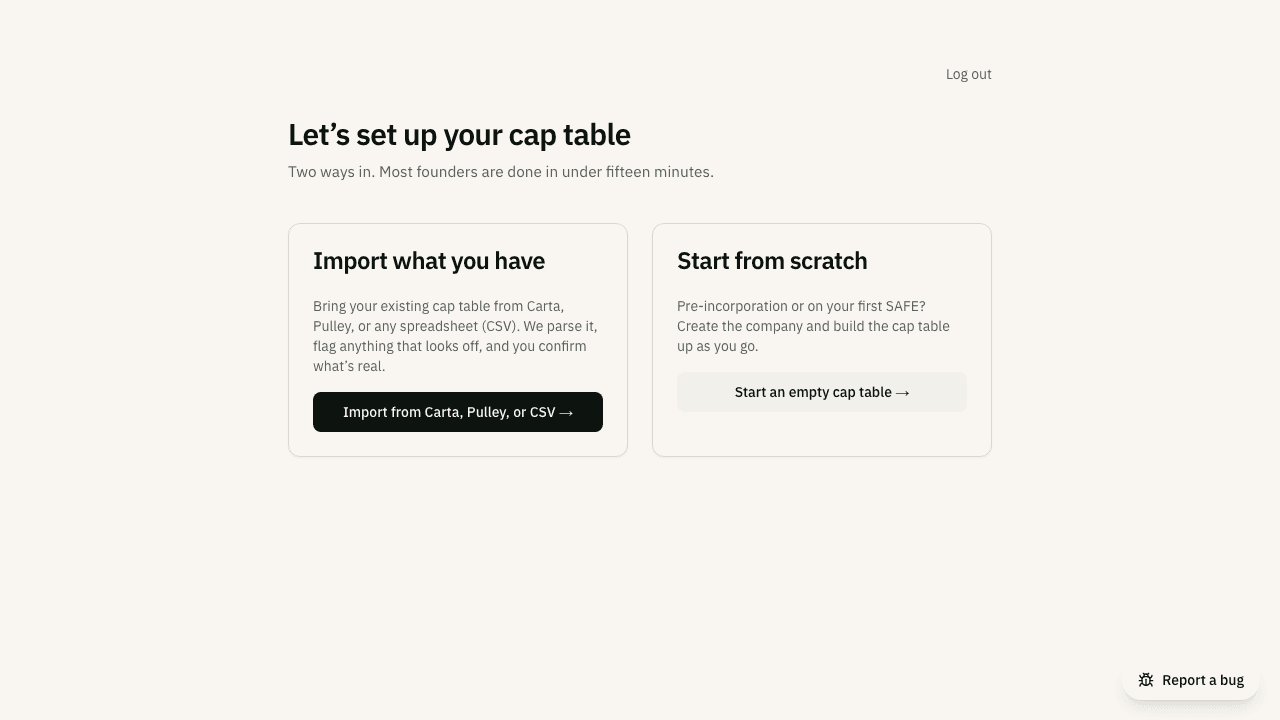
Start from scratch opens Set up your company, which asks for four things:
- Legal name, as it appears on your certificate of incorporation.
- Incorporation date.
- State or country of incorporation (Delaware is preselected; a company formed outside the US picks its country).
- Entity type: Corporation or LLC. A non-US company limited by shares, such as a BVI company or a UK Ltd, is a corporation.
Click Create company. That is the whole step. Creating the company and building its cap table are separate, because the person who opens the account is often not the person who owns the share numbers. A company with no cap table is a normal place to stop, and nothing expires.
Populate your cap table
The new company’s page offers three ways forward. An admin sees Someone else handles the finances? Invite them first: your CFO, controller, bookkeeper or attorney gets an invite, and lands on this same page when they accept. The other two are Build it by hand and Import from Carta, Pulley, or a spreadsheet. You can also do all of it from Claude (Option C below).
Option A: import what you already have
If your cap table lives in Carta, Pulley, Mantle or a spreadsheet, import it. Tenacap parses the file, reconciles every total against the source, and shows you a preview (stakeholders, share classes, securities, and any exceptions) before anything is committed. You confirm, then it writes the whole ledger at once. No export? The same card links a blank template (CSV or Excel) and a detailed workbook to fill in. The full walk-through, including how to produce the right export from each tool, is in Importing your cap table. When the import is done, an optional last step, Add your documents, takes the folder of signed paperwork and files each document on its record after you confirm (Import documents).
Option B: build it by hand
Build it by hand opens a short wizard that builds a founder-issued cap table on the company you just created, in four steps:
- Shares. Enter the share class, the number of shares your charter authorizes and their par value (all three are in your certificate of incorporation, usually Article IV). You can upload the certificate as a PDF instead: the wizard reads the three values and shows each beside the sentence it came from. Nothing is filled in until you click Use these values, the fields stay editable, and the file is not kept. If the file cannot be read, type the numbers. Then, if you want one, reserve an option pool for future hires, as a percentage of authorized (10% by default) or a share count: 10% of 10,000,000 authorized is 1,000,000 shares.
- Founders. Issue each founder’s shares out of what is left after the pool. Each founder’s percentage shows beside their share count as you type, with a running line underneath, for example “8,000,000 issued of 9,000,000 available after options · 1,000,000 unissued”. You cannot continue while the founders and the pool come to more than authorized; the line says by how much. Then say whether the shares vest. One schedule applies to every founder by default, and a founder who signed different terms can have their own.
- Funding (optional). None yet, or record the SAFEs you’ve raised, one or several. A SAFE holds no shares until it converts, so it does not count against authorized.
- Review. The same bar your cap table will open with, drawn from what you entered, the option pool as a share of fully diluted (the figure an investor quotes), and each founder’s fully-diluted ownership, before anything is written. Confirm, and you land on a populated cap table, where the same optional Add your documents step offered after an import lets you file the signed paperwork for what you just built (Import documents).
An AI assistant can propose the same build in one step with the build_cap_table tool: the share class, the founders with any vesting, the pool and the SAFEs, shown as one proposal an admin confirms. It is refused for a company that already has a cap table, and the checks and messages are the wizard’s own.
Every field carries a one-line note saying what it is and where to find it. From there, add restricted stock, option grants, and everything else in Managing your cap table.
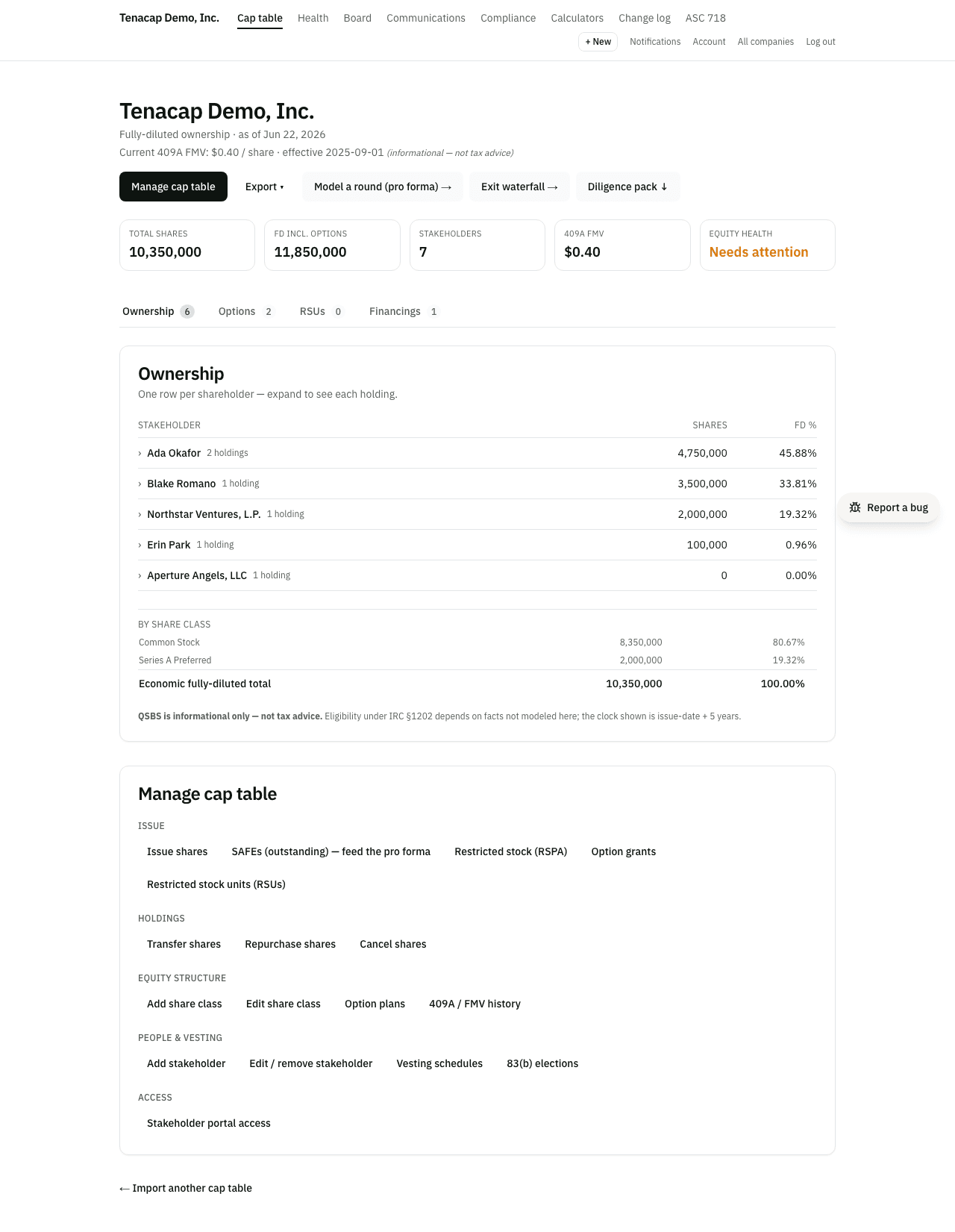
Option C: set it up from Claude
With Tenacap added to Claude (see Connect your AI assistant), open the + menu in a chat and choose Set up my company, or ask Claude to set up your company. Claude asks whether you already have a cap table somewhere.
- With an export (Carta, Pulley, Mantle, or a Tenacap workbook), Claude asks for your legal name, incorporation date, state and entity type, and hands the file to Tenacap’s importer. You confirm the whole company once. A file over 3 MB is uploaded through a one-time browser link Claude gives you, open for 15 minutes.
- With no export, Claude asks the same four facts and proposes an empty company for you to confirm. It then adds the authorized shares, each founder, any SAFEs and the option pool, each as its own proposal to confirm, or all of them in one proposal with
build_cap_table, the same single step as Build it by hand.
Nothing is created until you click Confirm in Tenacap. Creating a company this way needs the Admin role in a workspace that has no company yet. See Confirming what an assistant proposes.
Invite your team & advisors
Two kinds of invitation, for two kinds of people:
- People who run the cap table (a co-founder, your CFO, your attorney) get a seat in the workspace. An admin adds them from People in the left navigation and picks a role. See Roles & permissions.
- People on the cap table (employees and investors) get the read-only stakeholder portal, where each person sees only their own holdings, vesting, and estimated value.
Attorney and advisor seats are free on every tier.
Where to go next
- SAFEs & convertibles: record terms and generate a YC post-money SAFE to send for signature.
- Scenario modeling: model your next priced round and see SAFEs convert before you commit.
- Compliance & tax: 409A valuations, 83(b) tracking, Rule 701, and QSBS.
- Export & open schema: your data leaves in an open format whenever you want it to.